AR Triage View
Last updated: December 4, 2025
This is a guide that will teach you:
AR Triage Overview
Quick Actions
Table Sorting, Filters, and Layout
AR (accounts receivable) Triage provides a prioritized billing workflow designed to assist in the collection of outstanding customer invoices.
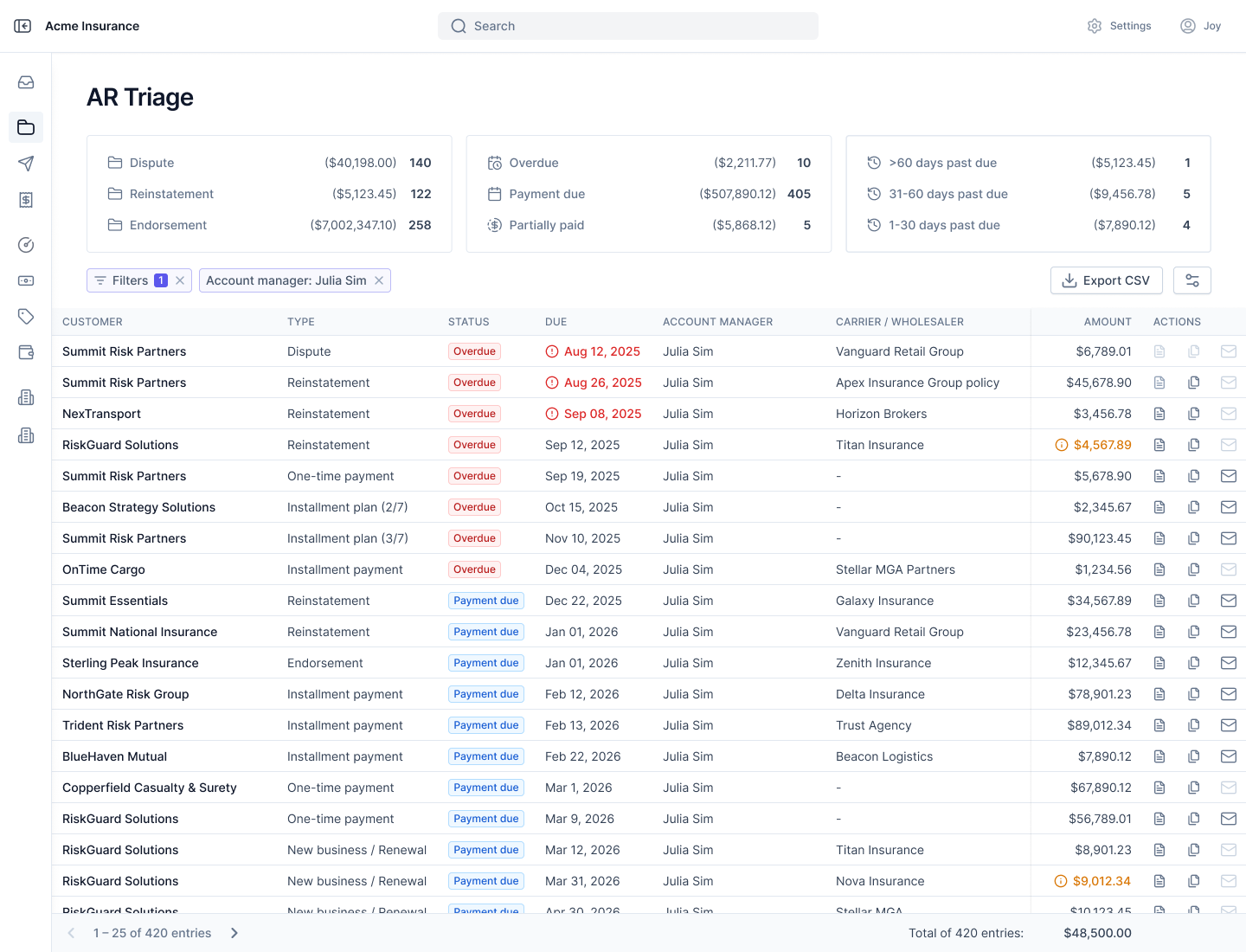
The table presents a consolidated view of all open customer invoices across transaction types (e.g. endorsement, new business, reinstatement) and product types (e.g. program, installment plan, one-time payment), with quick actions to help collect funds.
How to use AR Triage
Once you have billed something in Ascend (whether via a Program, Installment Plan, or One-time payment) the associated invoices will appear in AR Triage. To remove an invoice from the Triage view, you must archive or cancel the corresponding Program, Installment Plan, One-time Payment, Endorsement, or Reinstatement.
You should aim to keep your Triage view as clean as possible. Seeing many invoices in the Triage view means that your accounts have outstanding balances that need to be paid.
The table is automatically filtered for invoices where you are listed as the account manager. If you aren't listed as the account manager on any invoices, it will show outstanding customer invoices across your entire organization.
The table is automatically sorted by urgency of the invoice (more detail below) so that the most important items are always at the top.
Quick Actions
There are three actions you can take from each invoice, which are exposed when you hover over the "Actions" button on the right-hand side of the Triage view
Start email campaign: this triggers an automated email reminder campaign to your insured.
Copy checkout link: this copies the payment link for that invoice onto your clipboard. You can paste this into your own email/message to the insured.
View invoice: this opens the PDF invoice that can be downloaded and sent to your insured.

Detailed Breakdown
See a more detailed breakdown of features below:
Table Sorting
The table is sorted first by invoice type, then by invoice due date, with earliest due first. Past due invoices have will show the Payment Due label with due dates indicated in red. Scheduled or recurring invoices more than 30 days future dated do not appear in the table.
AR Triage Table Sorting:
Dispute - Past due
Reinstatement - Past due
Endorsement - Past due
Installment payment - Past due
Installment plan - Past due
One-time payment - Past due
Dispute - Payment due
Reinstatement - Payment due
Endorsement - Payment due
Installment plan - Payment due
New business / Renewal - Overdue
New business / Renewal - Payment due
One-time payment - Payment Due
Filter Cards

Located at the top of the view, the filter card displays the count and sum of invoices for records that fall under the filter type. You can click on these filters directly from the card, or select additional filters by clicking on the "Filters" button.
High-level Filter Types
Dispute: Invoices for insured to repay a credit card payment that was disputed by your insured. To learn more about disputes, click here.
You cannot delete a dispute invoice. If an insured wins a dispute and doesn't pay the dispute invoice, your organization is liable for the disputed amount.
Reinstatement: a canceled premium finance agreement where you have requested a payment link for the insured to use to reinstate the loan. To learn more about reinstatements, click here.
If a reinstatement link is no longer needed, navigate to the program and click "Cancel reinstatement", at which point the link will be deactivated and deleted from AR Triage.
Endorsement: an invoice for a premium-increasing endorsement you created on an active program. To learn more about premium-increasing endorsements, click here.
If an endorsement payment is no longer required (ie the endorsement was never bound), navigate to the program, scroll down to the "Policies" section, select the endorsement you want to delete, and click "Delete endorsement".
Overdue: an invoice that is past the due date (whether set by you or automatically on a finance agreement).
Payment due: an invoice that has been created but not yet paid, and is not overdue.
Partially paid: an invoice that has been partially paid (only available to some organizations).
>60 days past due: an invoice that is more than 60 days past the due date.
31-60 days past due: an invoice that is between 31 and 60 days past due.
1-30 days past due: an invoice that is overdue by less than 30 days.
Table Layout:
The table is filtered by default for any programs where you are listed as an account manager. If you are not an AM, then we will not apply the filter. You can remove the filter by clicking the "x" next to the "Account manager" filter.

The amount and action columns are pinned to the right, overflowing columns can be scrolled horizontally
Clicking into a row item directs the user to the corresponding Program or Installment plan page
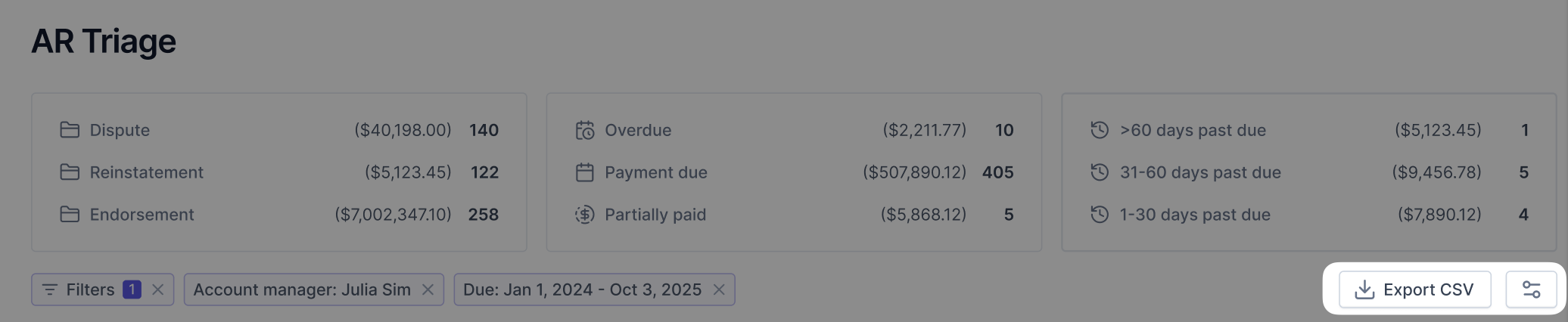
You can export data and customize table columns:
Contact Us
Need more help? Contact us at [email protected] for more help.