Pending Approval
Last updated: August 21, 2026
This is a guide that will teach you how to:
Understand what the Pending Approval tab is and how it fits into Ascend’s payout process.
Locate and filter payouts efficiently.
Approve and edit payouts, including updating policy details, commissions, and premiums.
Manage common scenarios, including refunds, commission changes, and premium adjustments.
Interpret payout timelines and understand when funds are released.
Ascend provides the Pending Approval tab so agencies have control over premium payouts to carriers, wholesalers, and MGAs while keeping the process automated. Pending Approval acts as a safeguard: it makes sure policy numbers, payable accounts, payment methods, and payee details are correct before funds are released.
For users, the benefit is simple: payouts are accurate, timely, and easy to track. You can adjust commissions, handle premium changes, and manage refunds directly in the approval flow, while still enjoying automation for routine cases.
This feature is only accessible to users with Admin or Accounting access
Payouts will move to the Pending Approval tab once the insured's payment has cleared to Ascend.
Locating Payouts in the Pending Approval page
To make it as seamless as possible for you to locate specific payouts within the Pending Approval tab, especially when managing a large volume of transactions, we have multiple filtering options.
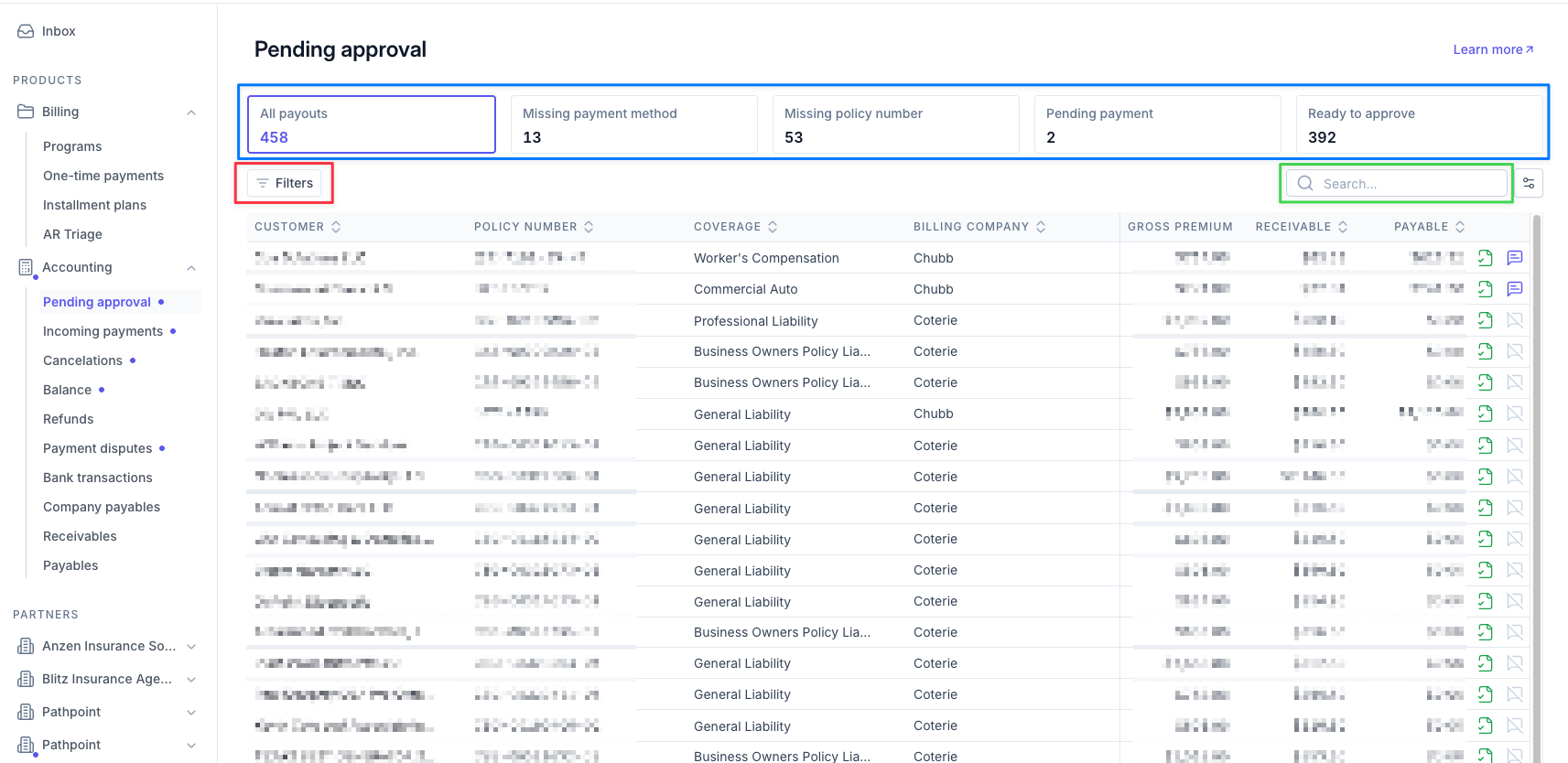
Broad Filters (5) in blue:
Quickly sort payouts by key categories such as:
All payouts – View every payout.
Missing payment method – Missing carrier/wholesaler payment info.
Missing policy number – No policy number listed.
Pending payment – Pending insured payment on an adjustment.
Ready to approve – Awaiting your approval.
Narrow Filters (7) in red:
Refine searches by Customer, Requires attention, Attachments, Effective date, Billing company, Purchase date, Policy type, Payment type, Account manager
Search Bar in green:
Use the search bar to locate payouts by any of the above filters for quick access.
Approving Payouts in the Pending Approval page
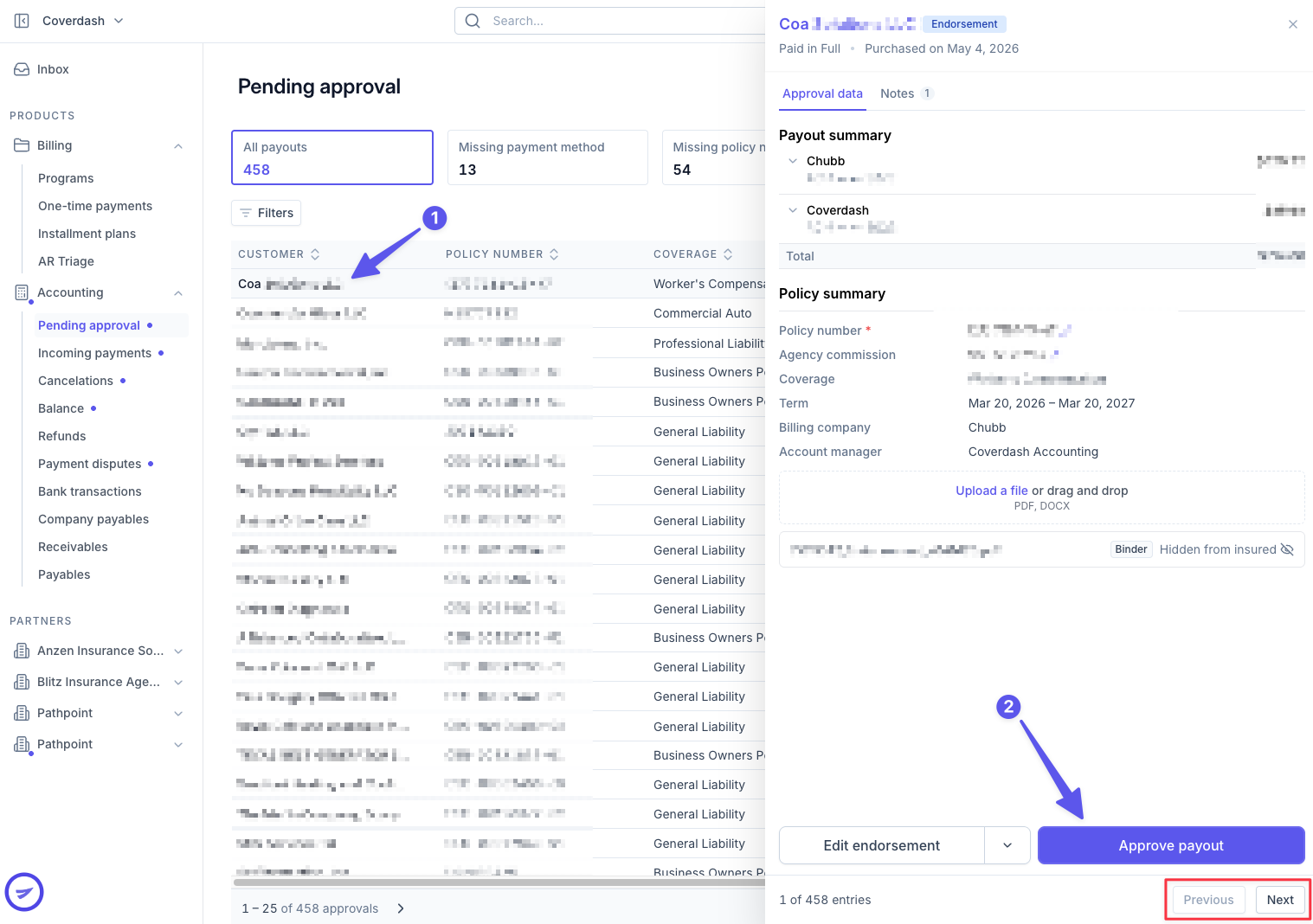
Approving a payout is simple: select the payout, then click Approve Payout.
To quickly review other pending payouts, use Previous and Next to move between them.
Editing Payouts in the Pending Approval page
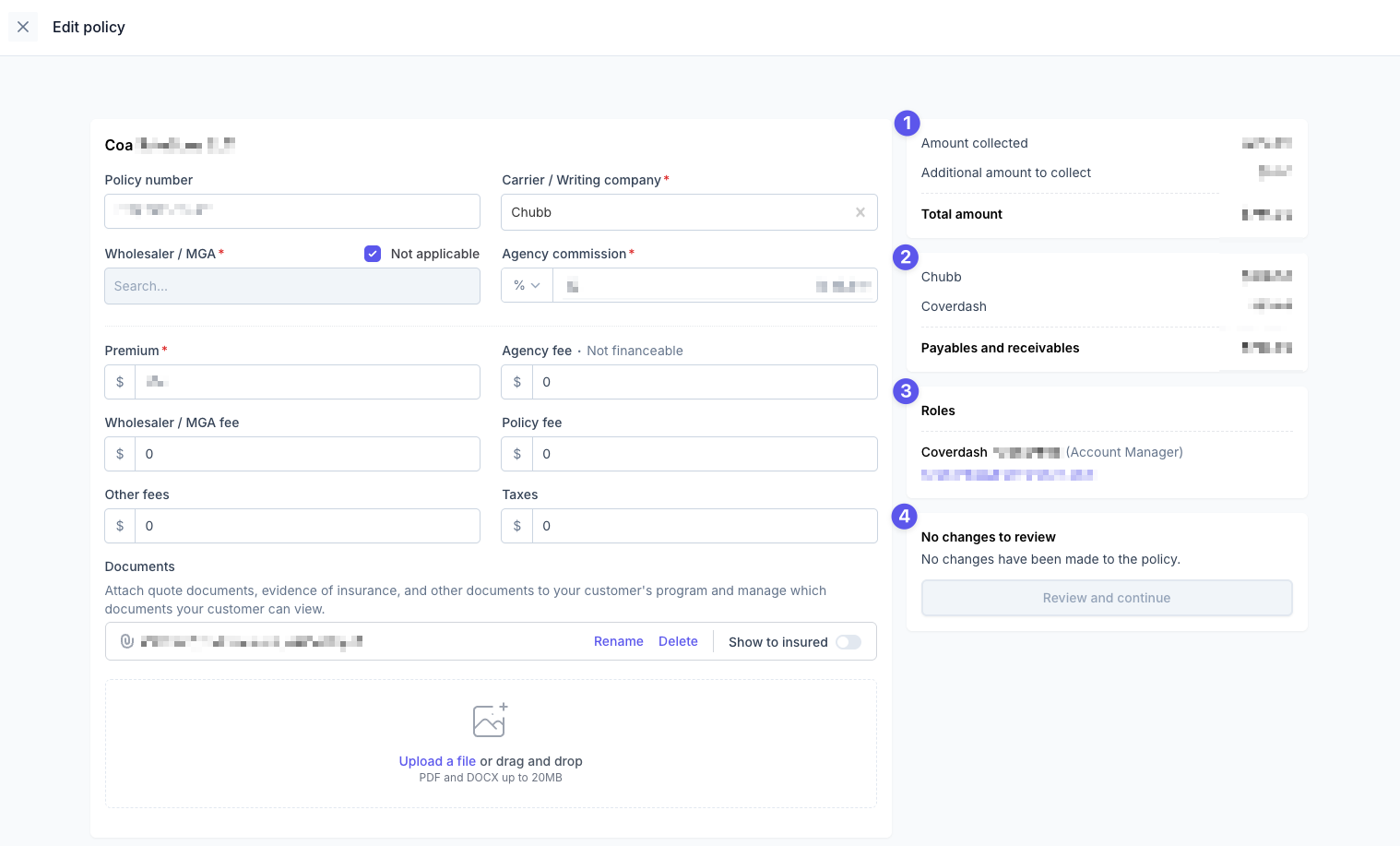
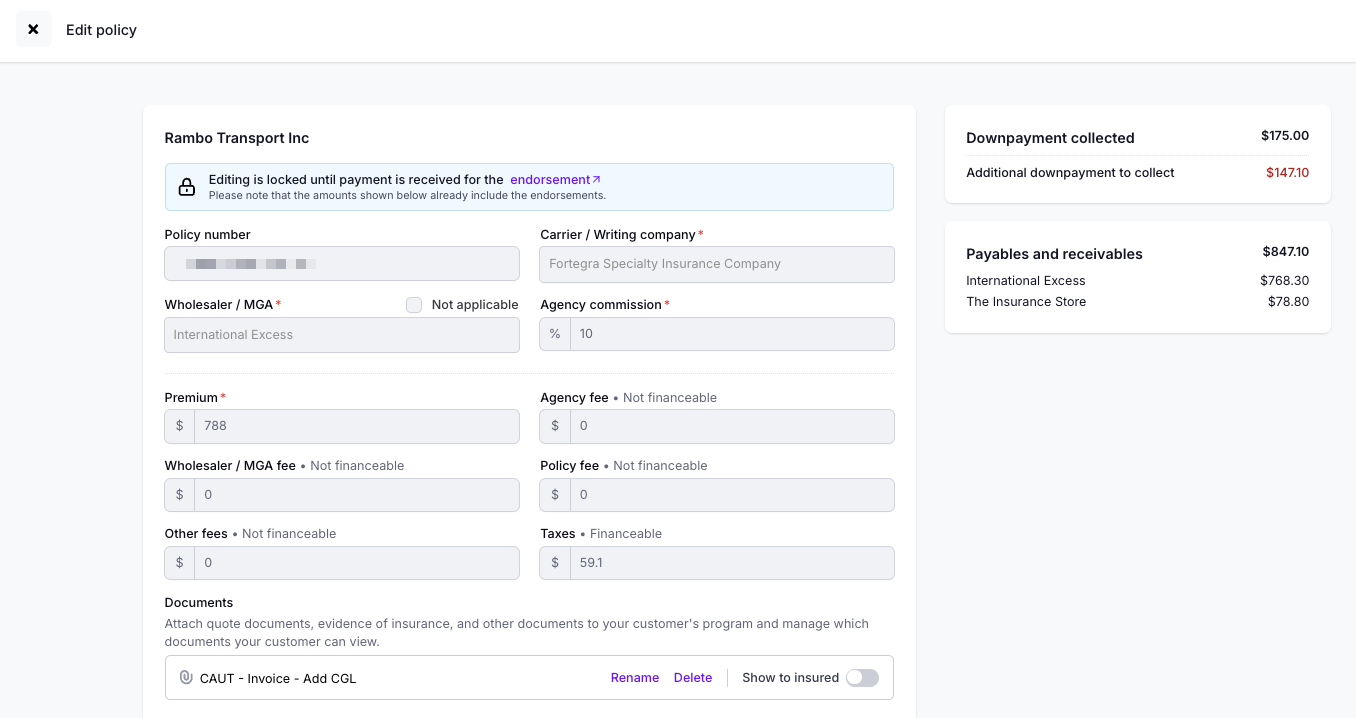
On the Edit Policy page, users can update policy details such as the carrier, premium, commission, fees, taxes, and supporting documents.
On the right-hand side, a summary panel displays:
Amount details including the amount already collected, any additional amount to collect, and the updated total.
Payables and receivables showing how funds will be distributed between the carrier and agency.
Roles assigned to the program, such as the account manager.
Review changes, where users can review and continue once updates have been made.
In case the policy details change after the insured has paid for the program, you can always bill/refund the insured via Edit Policy. Please remember to upload an invoice confirming your changes, then hit Edit Policy. See Common Edits and Workflows for further details.
Please note that any refund generated from an edit to a financed policy will be applied as a loan credit. The insured will not receive a cash refund.
Payout Timelines
Funding is released based on the policy’s effective date.
If approved before the effective date, funds are sent on the effective date.
If approved after, payouts occur the next business day for paid-in-full programs and within 3 business days for financed programs.
Funding is never released before the effective date to prevent the premature disbursement of financed premiums.
If funding needs to be expedited, please contact [email protected] or escalate in chat.
Common Edits and Workflows
Here are some common scenarios you might come across when you need to make changes to the policy details from the Pending Approval tab.
1. Refunds
If the policy you collected payment for wasn't bound, or for any reason you need to refund the insured, please click the dropdown next to the "Edit policy" button, then click "Cancel policy"
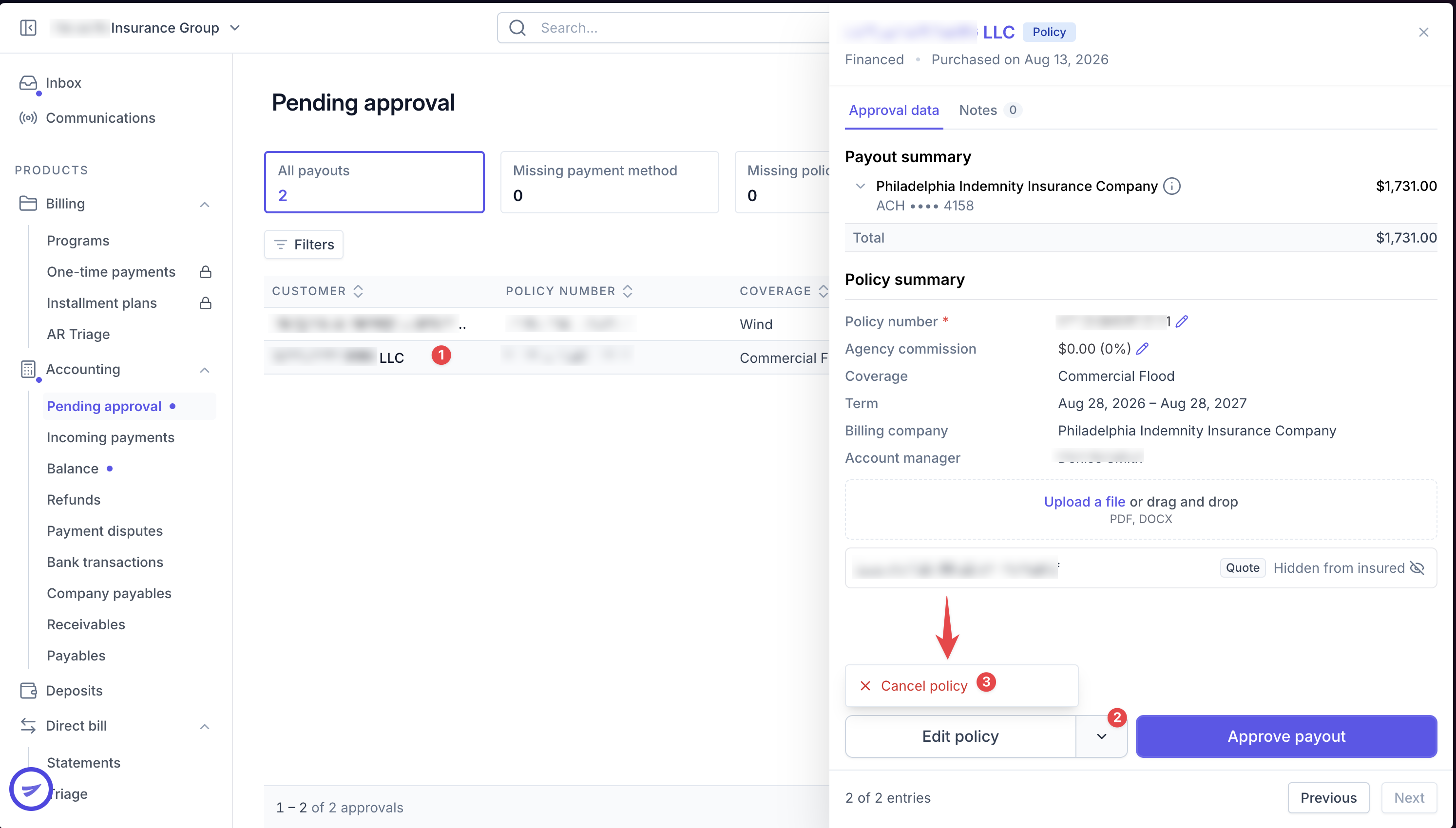
The same option to refund an endorsement payment made by an insured but not yet approved to pay the billing company will appear for endorsements:

All refunds are net of transaction fees, as transaction fees are nonrefundable.
If a policy was paid in full, the insured will receive a full refund (less the transaction fees) back to their original payment method.
If a policy was financed, with only 1 policy on the program the refund depends on the date of cancellation:
If it is canceled within 60 days from the effective date of the finance agreement (when the down payment was paid), the loan will be voided, all interest waived, and the insured will receive a full refund of their down payment and first monthly installment (if applicable), less transaction fees.
If it is canceled over 60 days from the effective date of the finance agreement, the loan will not be voided, and the insured is responsible for the interest accrued. This will automatically be deducted from the refund they receive.
The installment refund will be released 2 weeks after the down payment refund. Even if the insured pays the down payment and the first installment on the same invoice, the refund will not be issued at the same time.
If the policy was financed, with more than 1 policy on the program, the refund will be applied to the loan balance and will reduce future installments.
2. Incorrect Commission
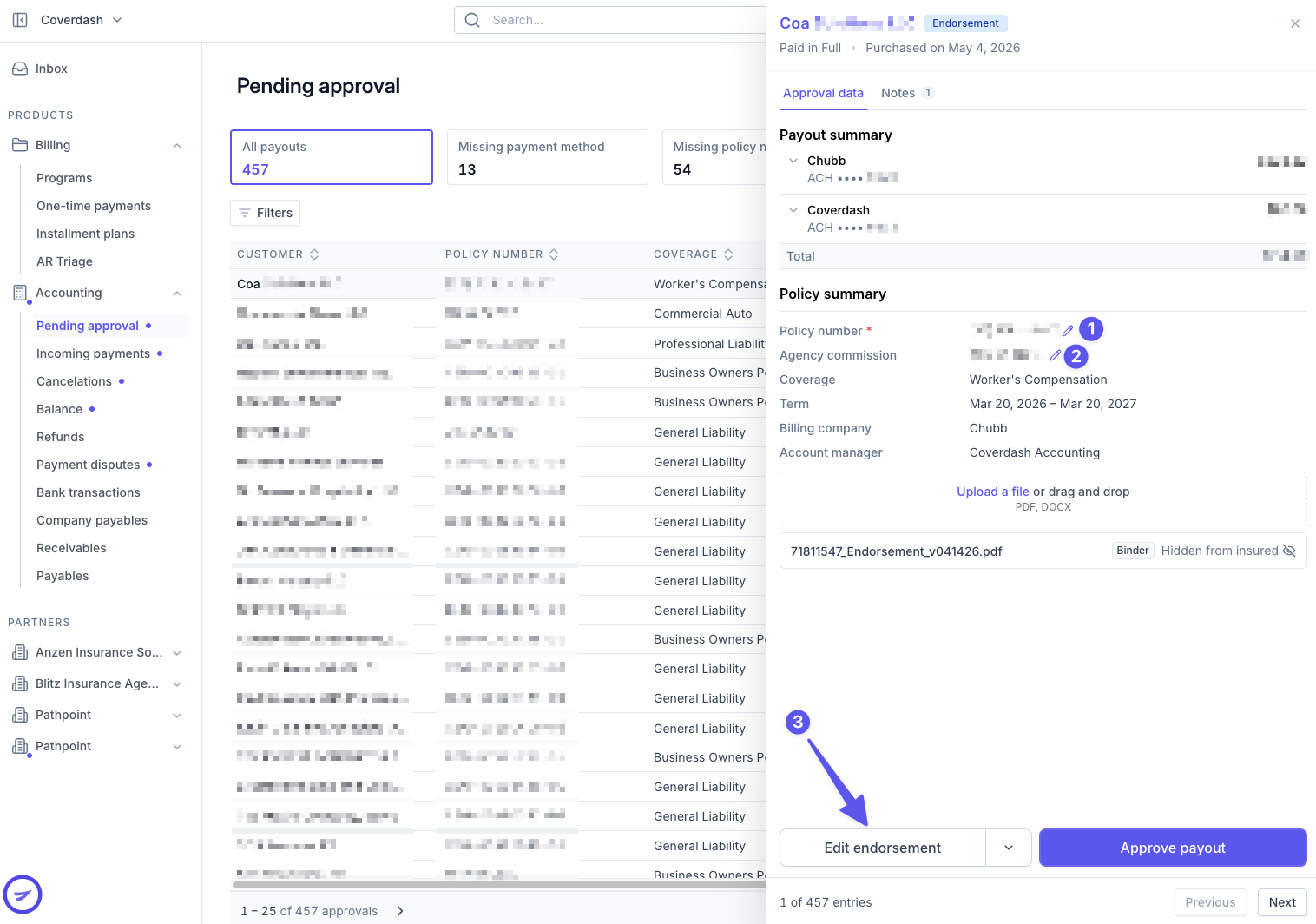
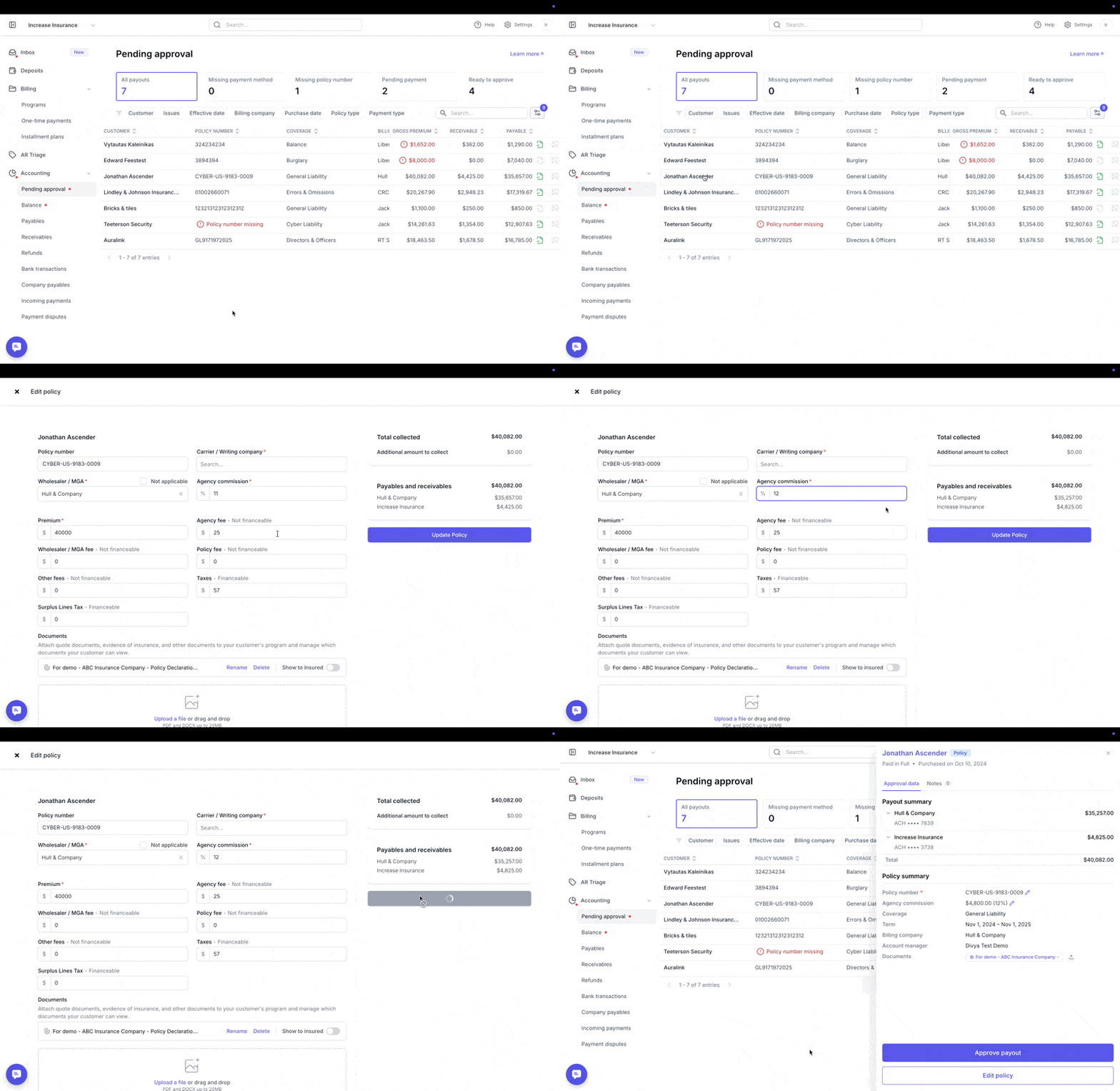
During the payout approval process, you can update the Agency Commission by clicking the Edit policy button next to the listed commission field. Once updated, the agency payout shown in the Payables and receivables section will automatically adjust to reflect the new commission amount.
You can also choose to edit commission as a dollar amount instead of a percentage of the premium, using the toggle between the percentage and the dollar value.
3. Incorrect Gross Premium
To update the quote details (premium, taxes, fees), you can click the Edit policy button on the bottom right corner of the relevant payout and update the necessary fields on the following window.
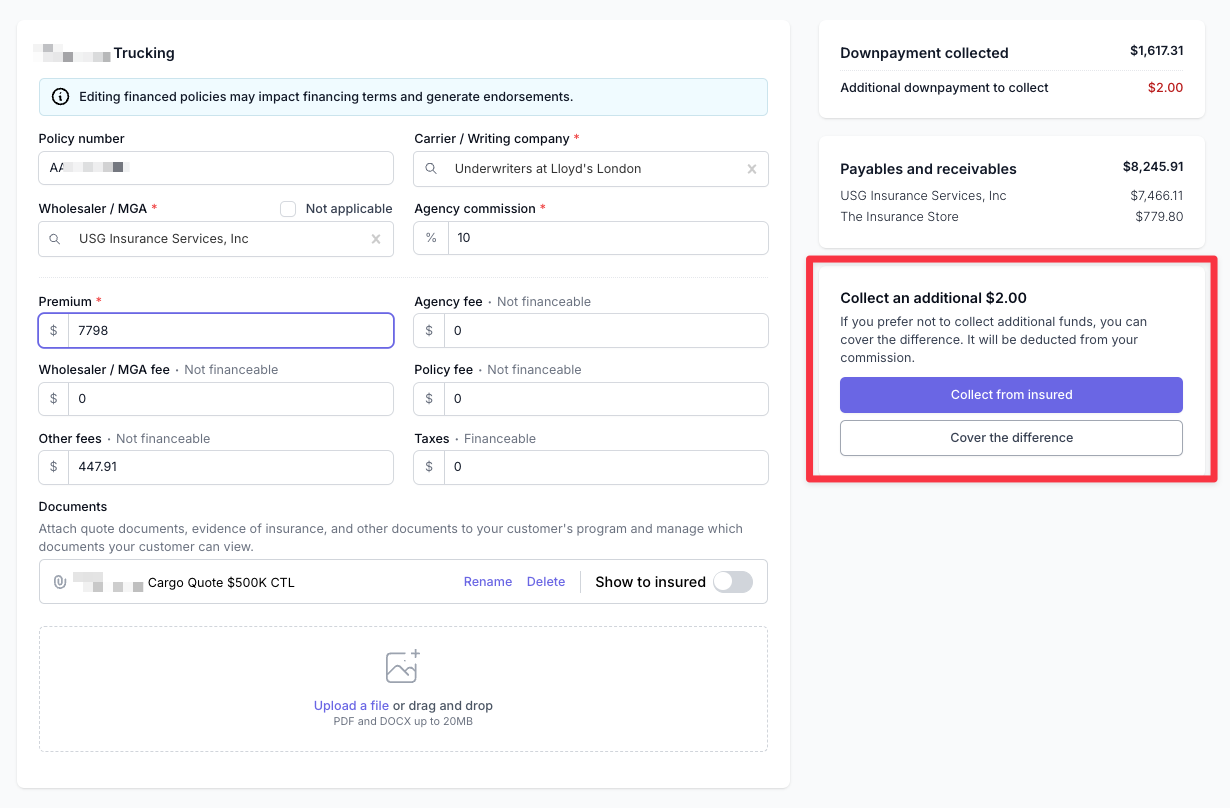
If the changes you make result in an increase in gross premium, you can choose to either:
Collect from insured: This will generate an endorsement on the program and create a new payment link.
If the insured financed the program, they'll be able to finance the endorsement.
If they paid in full, they'll be required to pay the endorsement in full.
Cover the difference: this will deduct the amount from your commission payout.
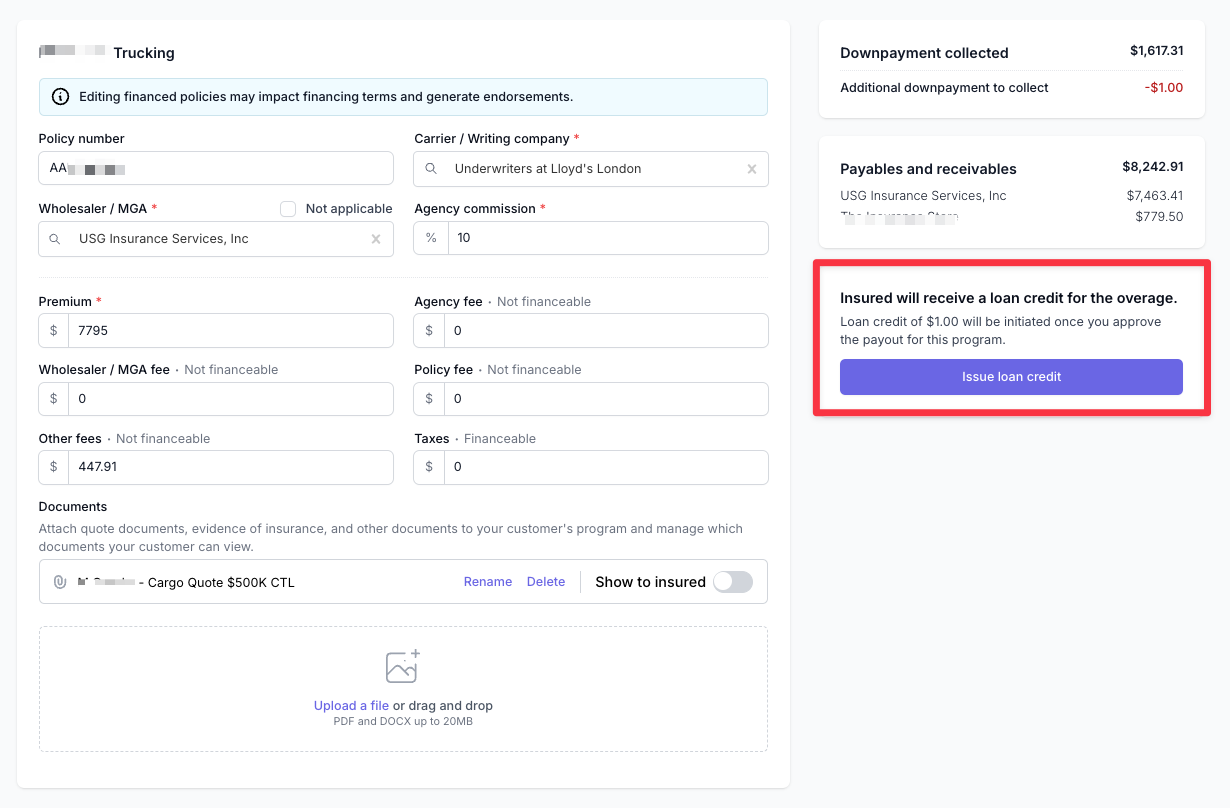
If the changes you make result in a decrease in gross premium, a refund will be issued to your insured when you approve the payout:
If the insured paid in full, a refund will be issued to the original payment method.
If the insured financed, a loan credit will be issued, which will decrease the loan balance and their monthly payments.
4. Edit Endorsement
As of right now, you cannot edit endorsement details from the Pending Approval tab. Please reach out to Ascend Support for assistance.
5. Rebalancing One-Time Payments and Installment Plans
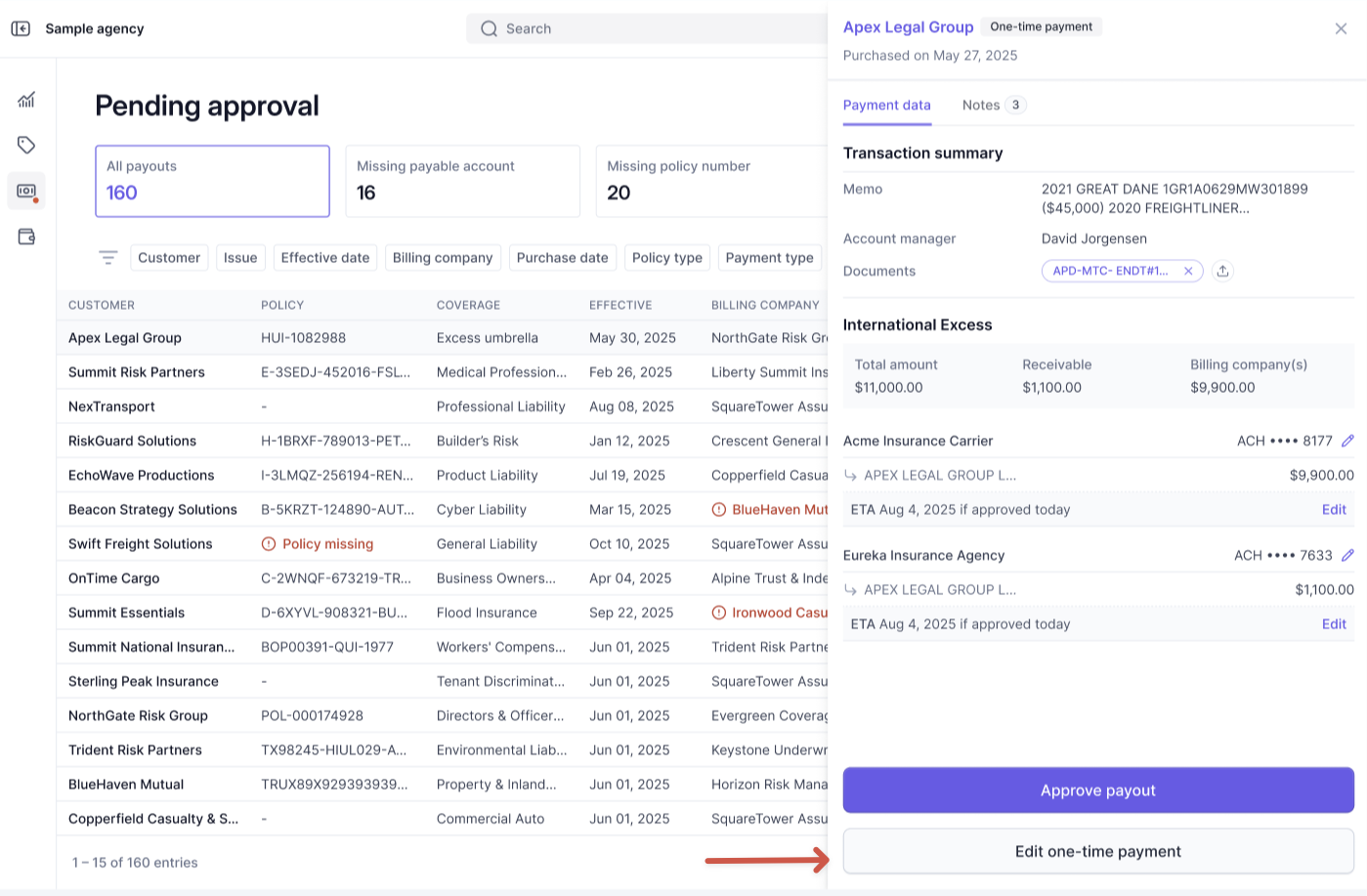
To change payout distributions or amounts for a one-time payment, open the payout in Pending Approval and click Edit one-time payment in the lower-right of the payout.
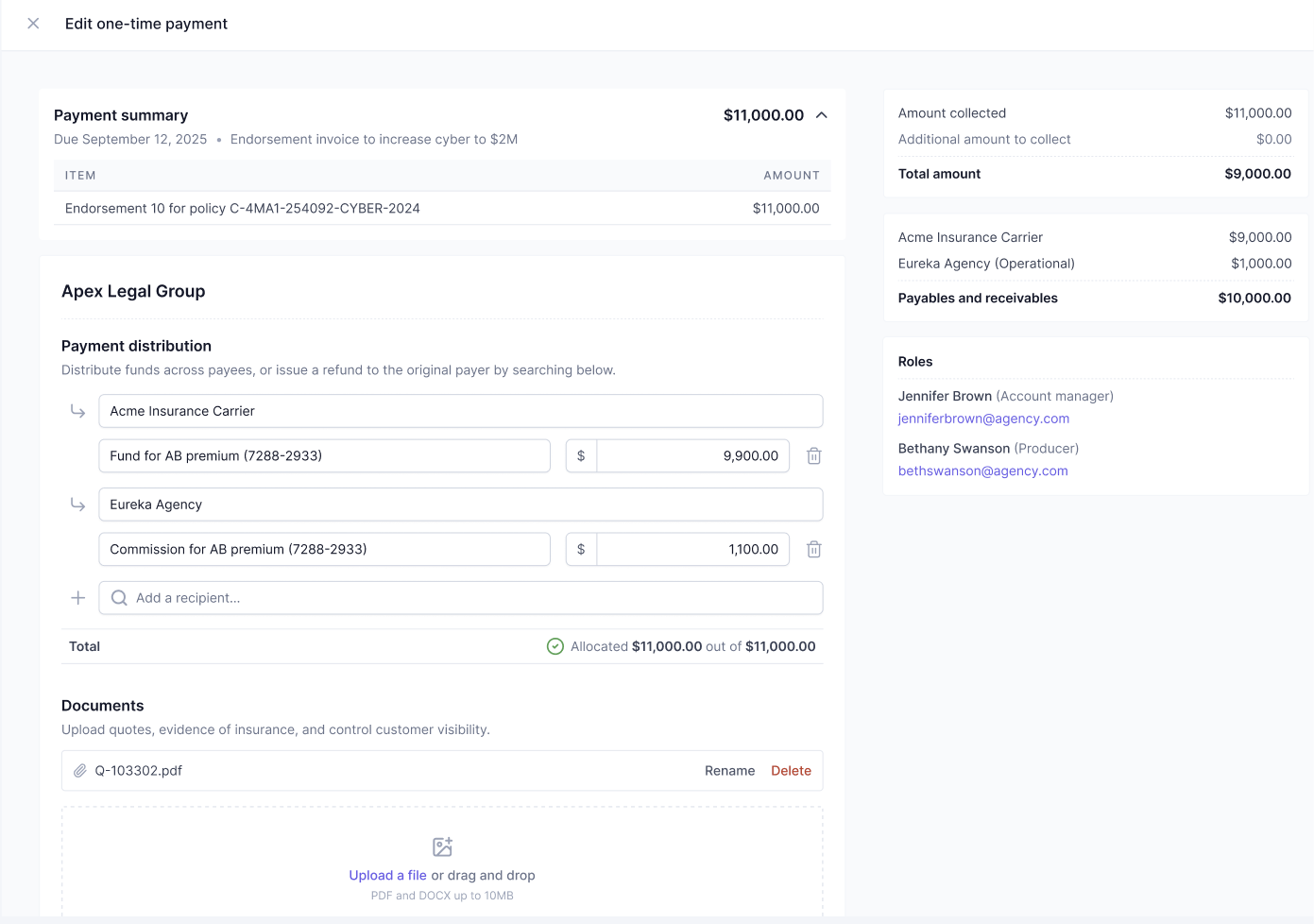
You can add or remove recipients, update line items, and enter dollar amounts for each payee. Use the trash icon to delete a line and the Add a recipient field to create a new payable.
If your edits reduce the total below the original invoice amount, a refund will be issued to the payer.
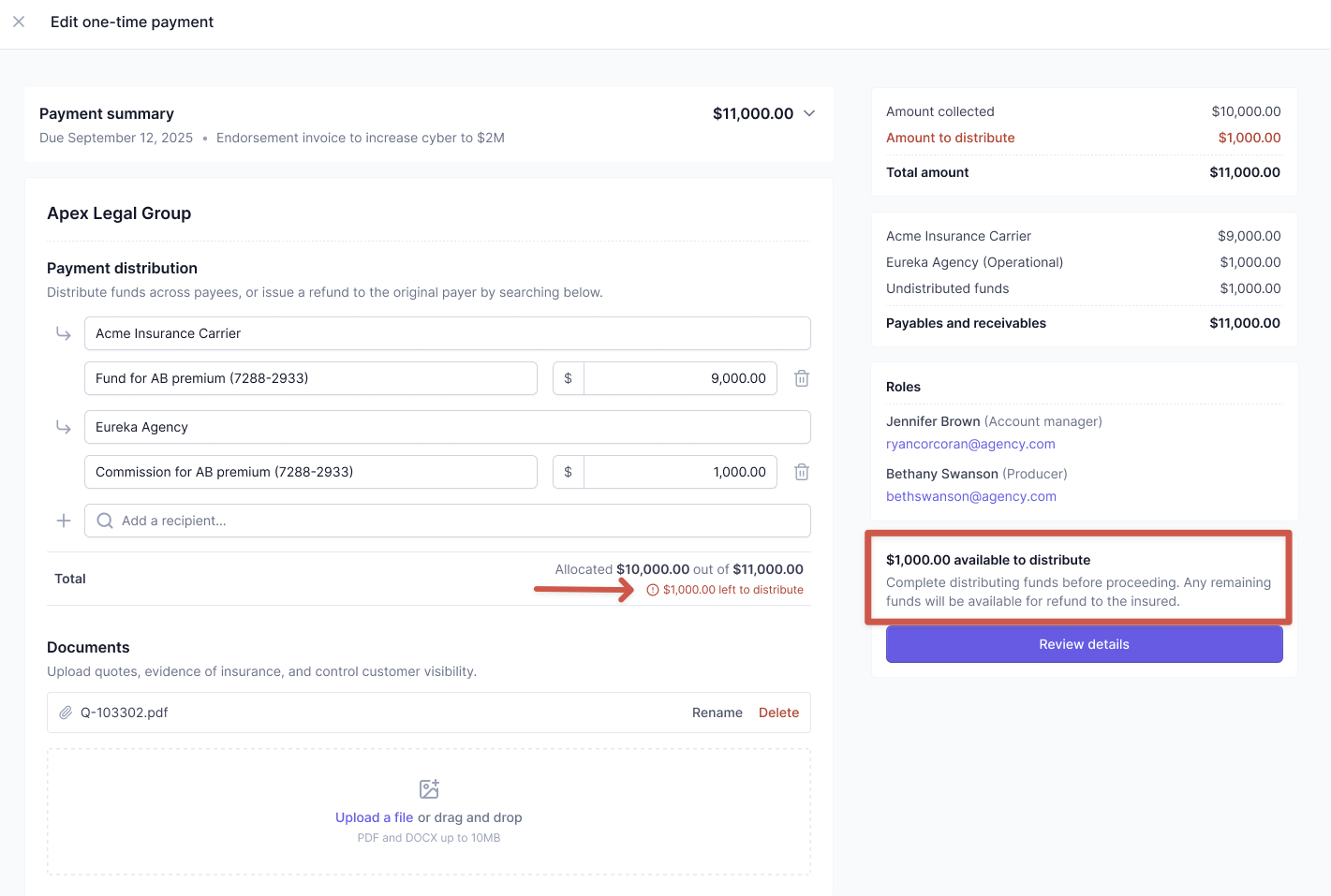
If your edits increase the total above the original invoice amount, create a new one-time payment to collect the additional funds.
FAQ
Why do I not have the Pending Approval feature?
The Pending approval feature is only available to Ascend Plus subscription or above. It is also limited to Admin and Accountants.
Why is the Approve button greyed out?
If you are unable to approve a payout, it means there is a required field that needs to be updated before approval is allowed. The required details include:
Policy Number
Payment method for the billing company
Does Ascend send remittance advice?
Yes, when the premium is sent to the MGA/wholesaler or carrier, we also provide remittance advice, typically to an agreed email address provided by the target organization, in a CSV file that contains policy details such as the program's name, policy number, payable types, etc
Can payouts be automated?
Admins can automate the approval of payables to specific MGA/Wholesaler or Carrier accounts. This can be accessed through Settings > Wholesalers / Carriers in the Configurations section for each MGA/wholesaler or carrier here.
Why is the program not showing in the Pending Approval page?
There are several reasons why a program might not appear in the Pending Approval page even though the insured has already made a payment:
Check if the insured's payment has cleared
Look out for any blocked payout notifications or emails from Ascend's Accounting Team
Verify all required fields are completed in the program
If none of these explain the issue, contact Ascend Support to investigate the specific program's status.
Why are my payouts blocked?
When there are discrepancies between the data entered (premium, fees, and taxes amount) in Ascend and the supporting documents, Ascend's Accounting Team will block payouts and reach out requesting corrected documentation. If contacted by Ascend Accounting, please reply to the email from our team with the requested documents.
What do I do when Ascend shows a payment as "cleared" but the carrier says they haven't received it?
Here is the order of steps you can take to investigate this issue:
Generate payment receipt: Use the download icon in the Billing company tab in the Program Page to generate proof of payment that shows precisely where and when funds were sent, and share the receipt with them to double-check as payments sometimes get misapplied
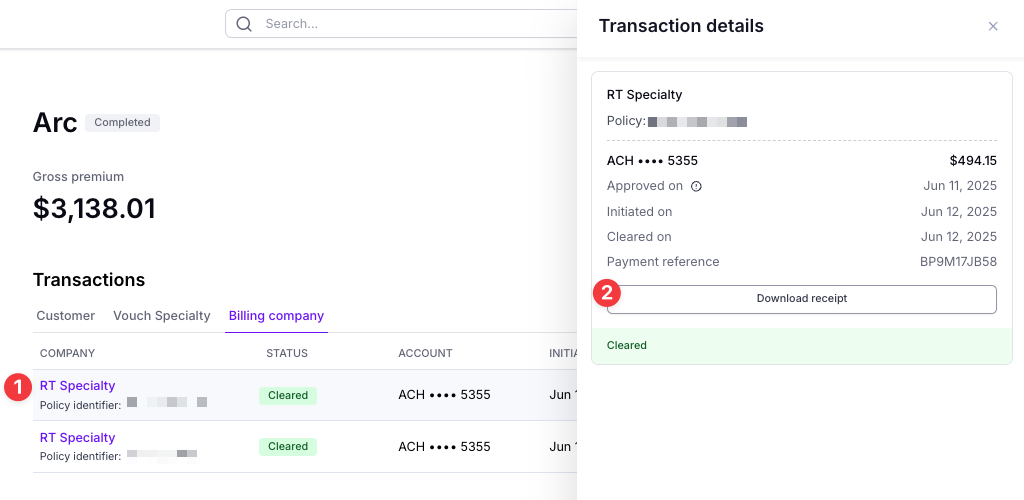
Verify carrier information: confirm the payment was sent to the correct carrier and bank account details
If you still can't find the issue, please reach out to Ascend Support for further assistance
I need to revert an adjustment I made from the Pending approval. How do I do that?
If your adjustment results in an increase in gross premium, you can edit the policy to the original amount without having to collect more funds from the insured.
If your adjustment results in a decrease in gross premium, you will need to collect from the insured or cover the difference to restore the original amount. Please reach out to Ascend Support at [email protected] for assistance.